

Mastering How to Draw Kitchen Cabinets in Autocad: A 2026 Pro Guide
Are you ready to transform your kitchen design ideas into reality? Learning how to draw kitchen cabinets in AutoCAD can be your first step towards creating the perfect kitchen layout.
Whether you're a budding interior designer or a homeowner eager to visualize your renovation plans, mastering this skill can open up a world of possibilities. Imagine being able to see your dream kitchen come to life on screen, with every detail precisely as you envisioned.
This guide will walk you through the process, ensuring you feel confident and excited to take your designs from concept to completion. Let's get started on turning your kitchen dreams into digital drawings that you can touch and feel, all within the powerful realm of AutoCAD.
Preparing The Workspace
Drawing kitchen cabinets in AutoCAD starts with a clean and organized workspace. Setting up your environment helps you draw accurately and saves time.
This guide covers key steps to prepare your workspace before you begin your cabinet design.
Setting Units And Limits
Start by setting the correct units for your drawing. Use inches or millimeters depending on your project needs. Next, define the drawing limits to fit the kitchen area size.
- Type "UNITS" in the command line and press Enter.
- Select your unit type (e.g., architectural, decimal).
- Set precision to two decimal places for accuracy.
- Type "LIMITS" and specify the lower-left corner as 0,0.
- Set the upper-right corner to the kitchen’s maximum width and height.
- Zoom to the drawing limits by typing "ZOOM" and then "A".
Organizing Layers
Using layers helps keep your drawing neat. Separate parts of the cabinet like frames, doors, and hardware into different layers. It makes editing easier.
| Layer Name | Purpose | Color |
| Frames | Main cabinet structure | Blue |
| Doors | Cabinet doors and panels | Green |
| Hardware | Handles and hinges | Red |
| Dimensions | Measurements and notes | Yellow |
Choosing Drawing Tools
Select tools that fit your drawing style. Use line tools for straight edges and rectangle tools for cabinet boxes. The offset tool helps create consistent panel thickness.
Useful AutoCAD commands to prepare your drawing:
LINE- Draw straight lines for edges.RECTANGLE- Quickly create cabinet faces.OFFSET- Copy lines at a set distance.TRIM- Remove unwanted parts.ARRAY- Duplicate objects in rows or columns.
Creating The Cabinet Base
Drawing kitchen cabinets in AutoCAD starts with creating a solid base. This base gives structure to your design.
We will cover how to draw the cabinet outline, add base parts, and set the correct dimensions.
Drawing The Cabinet Outline
Begin by drawing a rectangle to form the cabinet's outer shape. Use the Line or Rectangle tool in AutoCAD.
Make sure the size matches your design specifications before moving forward.
Adding Base Components
Add the main base parts inside the outline. These include the toe kick, bottom panel, and side panels.
- Draw the toe kick at the bottom front, usually 4 inches high.
- Create the bottom panel inside the base outline.
- Add side panels to give depth to the cabinet.
- Use layers to keep components organized.
Applying Dimensions
Apply accurate dimensions to ensure your cabinet fits well in the kitchen space.
| Component | Typical Size | Notes |
| Toe Kick | 4 inches high | Front base support |
| Bottom Panel | Width of cabinet | Supports cabinet weight |
| Side Panels | Depth of cabinet | Provide cabinet sides |
Designing Cabinet Doors and Drawers
Drawing kitchen cabinets in AutoCAD requires clear design steps. Focus on cabinet doors and drawers for detailed plans.
Good designs help builders understand how to make and install cabinets correctly. Use simple shapes and lines to start.
Sketching Door Panels
Begin by drawing the outer frame of the door panel. Use rectangles to show the shape and size of each door.
Add inner panels by drawing smaller rectangles or shapes inside the frame. These show the door’s style and details.
- Draw the door outline first
- Add inner panel shapes
- Use lines to show edges and thickness
Adding Drawer Fronts
Draw the drawer fronts as rectangles below or between doors. Keep sizes proportional to match the cabinet.
Include details like grooves or raised edges by adding smaller lines inside the drawer front shape. This adds depth.
- Sketch rectangles for each drawer
- Use inner lines for design details
- Keep drawer sizes consistent
Incorporating Handles and Knobs
Mark the position of handles and knobs on doors and drawers. Draw small circles or rectangles to show their location.
Keep handle sizes simple and easy to see. Place them where users can grab comfortably, usually near edges.
- Use circles for knobs
- Use rectangles or lines for handles
- Place handles near door or drawer edges
- Ensure sizes fit the cabinet scale
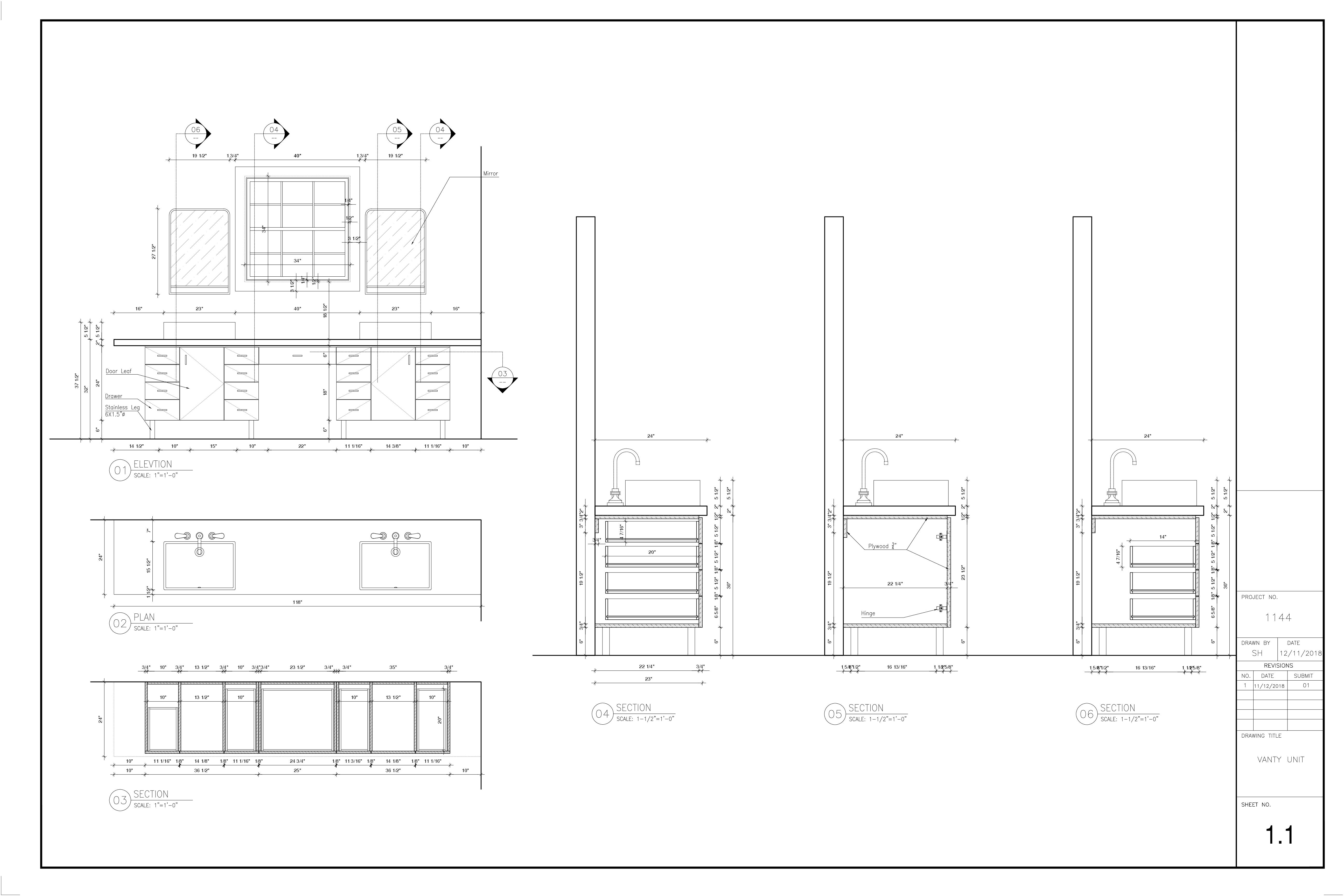
Credit: www.fiverr.com
Adding Shelves and Interior Details
Drawing kitchen cabinets in AutoCAD requires attention to interior features. Shelves and compartments make the design functional. Adding these details helps show the cabinet's use and structure.
AutoCAD tools allow you to create precise interior elements. This guide covers how to draw shelves, dividers, and label parts inside your cabinet drawing.
Drawing Interior Shelves
Start by measuring the inside height of the cabinet. Decide how many shelves you want. Use the line or rectangle tool to draw shelf shapes inside the cabinet frame.
Place shelves evenly or based on the items that will go inside. Use layers to separate shelves from the cabinet body. This makes editing easier later.
- Measure inside height and width
- Draw horizontal lines or rectangles for shelves
- Use layer names like "Shelves" for clarity
- Adjust shelf thickness according to material
Including Dividers And Compartments
Dividers help organize the cabinet interior. Draw vertical lines or thin rectangles to show these parts. Place them between shelves or inside compartments.
Compartment sizes depend on storage needs. Use AutoCAD’s copy and move tools to create repeated divider sections quickly. Keep measurements consistent for neat design.
- Draw vertical lines for dividers
- Create compartments with rectangles
- Use copy tools for repeated sections
- Check all measurements for accuracy
Labeling Components
Labeling helps identify cabinet parts clearly. Use the text tool to add names like "Shelf", "Divider", or "Compartment". Place labels near the parts without cluttering the drawing.
Use consistent font size and style. Group labels and parts for easy movement. This makes your AutoCAD drawing easier to understand for builders or clients.
- Use text tool to add labels
- Place labels close to parts but clear
- Keep font size readable
- Group labels with parts for easy editing
Finalizing The Drawing
After creating the basic shapes of your kitchen cabinets in AutoCAD, you need to finalize the drawing. This step makes your design clear and ready for use. It includes adding textures, checking details, and setting up the drawing for printing.
Each part of the finalizing process helps to improve the quality and usability of your drawing. Follow these steps carefully to ensure your cabinets look professional and accurate.
Applying Hatches And Textures
Hatches and textures show different materials used in the cabinets. They help others understand the design better. Use AutoCAD’s hatch tool to fill cabinet surfaces with patterns like wood grain or tiles.
- Select the cabinet face to apply the hatch.
- Choose a hatch pattern that matches the material.
- Adjust scale and angle for a natural look.
- Use different colors to separate cabinet parts.
- Preview the hatch before finalizing it.
Checking For Accuracy
Accuracy is key to a successful cabinet drawing. Measure all parts and compare them to your design plan. Look for missing lines, wrong dimensions, or overlapping objects.
| Check Area | What to Look For | Action |
| Dimensions | Correct lengths and widths | Use dimension tools to verify |
| Lines | No gaps or overlaps | Zoom in and edit carefully |
| Layers | Proper layer assignment | Organize layers by cabinet parts |
| Text | Readable and correct labels | Edit text size and content |
Preparing For Printing
Set up your drawing so it prints correctly. Choose the right paper size and scale. Make sure all details fit inside the print area.
Follow these tips for printing:
- Set the drawing scale to match real size.
- Use layout tabs to arrange views.
- Check line weights for clarity.
- Preview the print before sending it.
- Save a PDF copy for sharing.
Tips For Efficient Drawing
Drawing kitchen cabinets in AutoCAD can be faster and more organized. Using smart techniques saves time and effort.
These tips help you work smarter and reduce mistakes while designing your cabinets.
Using Blocks And References
Blocks let you reuse cabinet parts without redrawing them. You can create a block for a door or drawer.
References allow you to link external files. This helps keep your main drawing small and organized.
- Create blocks for common cabinet shapes
- Edit one block to update all copies
- Use external references for large projects
- Keep blocks named clearly for easy use
Leveraging Keyboard Shortcuts
Keyboard shortcuts speed up your drawing process. They reduce mouse movement and click time.
Learn shortcuts for commands like line, copy, and trim to work faster.
- Use "L" for Line
- "C" for Circle
- "CO" for Copy
- "TR" for Trim
- "E" for Erase
Saving And Backing Up Files
Save your work often to avoid losing progress. Use different file versions to track changes.
Back up files on external drives or cloud storage to keep your drawings safe.
- Save every 10-15 minutes
- Use "Save As" for new versions
- Keep backups on a separate drive
- Use cloud services for extra security

Credit: www.fiverr.com
Frequently Asked Questions
How Do I Start Drawing Kitchen Cabinets In Autocad?
Begin by setting up your drawing units and scale. Use the rectangle tool to outline cabinet dimensions. Add layers for different cabinet parts to stay organized. Use precise measurements for accuracy.
What Autocad Tools Are Best For Cabinet Design?
Use the Line, Rectangle, and Offset tools for cabinet shapes. Employ the Trim and Extend tools to refine edges. Use Layers to separate cabinet components. The Hatch tool helps visualize materials.
How Can I Ensure Accurate Cabinet Dimensions In Autocad?
Always use the Dimension tool to mark exact sizes. Set units to match your project specifications. Double-check measurements against your design plan. Use object snaps for precise alignment.
Can I Create 3d Kitchen Cabinets In Autocad?
Yes, use the 3D modeling workspace. Start with 2D sketches, then extrude shapes to 3D. Use the PressPull tool for depth. Apply materials and lighting for realism.
Conclusion
Drawing kitchen cabinets in AutoCAD becomes easier with practice. Start with simple shapes and add details step by step. Use layers and precise measurements to keep your work neat. Take your time to check each line and dimension. Soon, your drawings will look clear and professional.
Keep exploring AutoCAD tools to improve your skills. This process helps you design cabinets that fit any kitchen space. Practice regularly, and you will gain confidence fast.


