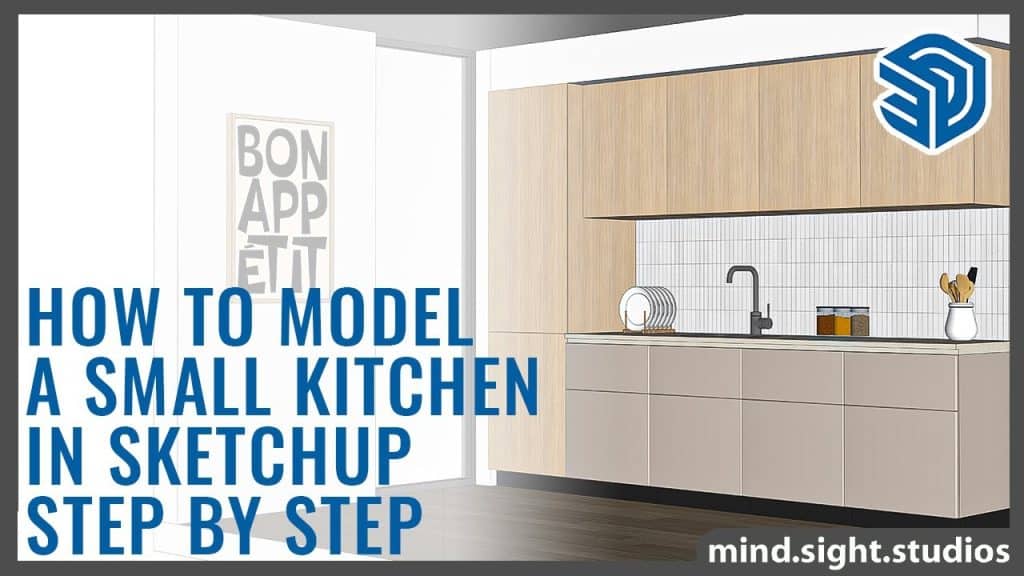
Are you looking to transform your kitchen design ideas into reality? Learning how to draw kitchen cabinets in SketchUp can be your first step.
Whether you’re a homeowner dreaming of a new kitchen layout or a budding interior designer eager to sharpen your skills, mastering SketchUp can open up a world of possibilities. Imagine having the power to create precise, detailed cabinet designs that bring your vision to life.
In this guide, you’ll discover straightforward steps to easily draw your own kitchen cabinets, no matter your level of experience. Dive in and unlock the potential of your creativity with tools that make design both accessible and exciting. Your dream kitchen design is just a few clicks away. Ready to start? Let’s get drawing!

Credit: www.youtube.com
Preparing Sketchup For Cabinet Design
Designing kitchen cabinets in SketchUp starts with a clean workspace. Getting ready helps you work faster and with less confusion.
This guide explains how to set up your SketchUp environment and choose the right tools for cabinet design.
Setting Up The Workspace
First, organize your workspace to focus on cabinet design. Use a simple template with measurements in inches or millimeters. This makes your model accurate.
- Open SketchUp and select a template with architectural units.
- Turn on the “Guides” and “Grid” to help with precise drawing.
- Arrange toolbars for easy access to drawing and editing tools.
- Set the camera to “Parallel Projection” for better views of cabinet faces.
- Save your workspace layout to keep these settings for future projects.
Choosing The Right Tools
Select tools that help you draw and edit cabinet parts quickly. SketchUp has many built-in tools suitable for cabinet design.
| Tool | Use | Shortcut |
| Rectangle Tool | Draw cabinet faces and panels | R |
| Push/Pull Tool | Give depth to cabinet parts | P |
| Line Tool | Create edges and custom shapes | L |
| Move Tool | Position and copy parts | M |
| Orbit Tool | Change your view angle | O |
Creating The Cabinet Base
Drawing the cabinet base is the first step in SketchUp. It forms the bottom part of your kitchen cabinet.
The base supports the whole cabinet and holds all other parts together. Let’s start with the frame.
Drawing The Cabinet Frame
Begin by drawing a rectangle for the cabinet’s footprint. This shows the width and depth.
Pull the rectangle up to the cabinet’s height using the Push/Pull tool. This creates the main frame.
- Use the Rectangle tool to draw the base shape
- Set correct measurements for width and depth
- Use Push/Pull tool to set the cabinet height
- Check dimensions to match your kitchen plan
Adding Panels And Dividers
Add side panels by drawing thin rectangles on each side of the frame. These form the cabinet walls.
For dividers, draw vertical or horizontal lines inside the frame. Push or pull these to create shelves or sections.
- Draw side panels with the Rectangle tool
- Use accurate thickness for realistic panels
- Add dividers for shelves or drawers
- Ensure panels align with the frame edges
Designing Cabinet Doors And Drawers
Drawing kitchen cabinets in SketchUp needs clear steps. Designing cabinet doors and drawers is key for a good look.
This guide shows how to draw door fronts and model drawer boxes with simple tools in SketchUp.
Sketching Door Fronts
Start by drawing the door front shape on the cabinet face. Use the rectangle tool to make a clean outline.
Add details like panels or frames by drawing smaller rectangles inside the door shape. Use the push/pull tool to add depth.
- Draw the outer door shape using the rectangle tool
- Create inner panels for style and depth
- Use push/pull to give thickness to the door
- Apply group or component to keep door parts organized
Modeling Drawer Boxes
Draw the drawer box inside the cabinet space. Start with a rectangle matching the drawer size.
Use the push/pull tool to set the drawer depth. Add sides, bottom, and back by drawing and extruding shapes.
- Create the drawer front with the rectangle tool
- Push/pull the rectangle to the drawer depth
- Draw and extrude the drawer sides and bottom
- Group all parts to move the drawer easily

Credit: www.youtube.com
Adding Details And Hardware
Adding details and hardware makes your kitchen cabinets look real. These small parts give your design a finished look.
This guide shows how to add handles, knobs, hinges, and slides in SketchUp for your cabinets.
Inserting Handles And Knobs
Handles and knobs help open cabinet doors and drawers. Adding them makes your model more useful and clear.
To insert handles or knobs, use the component tool in SketchUp. Search for hardware models or create your own simple shapes.
- Choose the right size for your cabinet doors or drawers.
- Place handles in the center or near the edges.
- Align knobs at a comfortable height for use.
- Use the move and rotate tools to adjust position.
Including Hinges And Slides
Hinges and slides make the doors and drawers work smoothly. Adding them shows how your cabinets open and close.
Find hinge and slide components in SketchUp’s 3D Warehouse or model simple versions yourself. Attach them near the edges where doors connect.
- Place hinges on the side or top of cabinet doors.
- Add slides under drawers for smooth movement.
- Check alignment to avoid overlaps or gaps.
- Group hardware with cabinet parts for easy editing.
Applying Materials And Textures
Adding materials and textures in SketchUp brings kitchen cabinets to life. It helps you see how different finishes will look in real space.
This guide explains how to apply wood finishes and customize colors for your cabinet models.
Choosing Wood Finishes
Pick the right wood finish to match your kitchen style. SketchUp offers several preset wood textures you can use.
- Open the Materials panel and select the Wood category.
- Browse through finishes like oak, maple, cherry, and walnut.
- Click a finish and apply it directly to cabinet faces.
- Use the Paint Bucket tool for easy application.
- Adjust texture scale if the pattern looks too big or small.
Customizing Colors And Patterns
You can change colors and patterns to fit your design. SketchUp lets you edit materials or create new ones.
| Customization Option | Description |
| Color Picker | Change the base color of a material easily. |
| Texture Scale | Resize the pattern to fit cabinet size better. |
| Opacity | Make the material more transparent if needed. |
| Import Textures | Add your own images as new textures. |
Final Adjustments And Exporting
After drawing your kitchen cabinets in SketchUp, it is important to make final adjustments. This ensures your model looks perfect and fits your design needs.
Exporting your model correctly lets you share or present your work easily. Follow these tips for the best results.
Checking Dimensions And Alignment
Check all cabinet dimensions to match your kitchen plan. Make sure the width, height, and depth are accurate.
Look closely at the alignment of cabinet doors and drawers. Misaligned parts can cause problems during installation.
- Use the Tape Measure tool to verify sizes
- Zoom in to check door and drawer gaps
- Adjust components using the Move tool if needed
- Ensure cabinets line up properly with walls and countertops
Exporting Models For Presentation
Choose the right file format for your presentation. Common formats include PNG for images and SKP for SketchUp files.
Set your view angle and lighting before exporting. This helps show your kitchen cabinets clearly.
- Use the Export option under File menu
- Select 2D Graphic to save a picture
- Choose 3D Model to share the full design
- Pick a high resolution for clear images
- Check export settings like background color and shadows
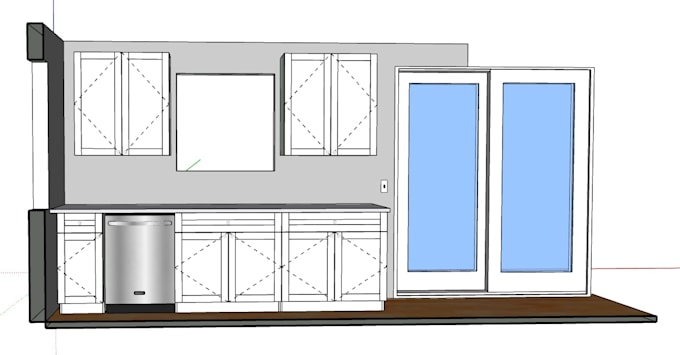
Credit: www.fiverr.com
Frequently Asked Questions
How Do I Start Drawing Kitchen Cabinets In Sketchup?
Begin by setting the cabinet dimensions using the Rectangle tool. Next, use Push/Pull to create cabinet depth. Add details like shelves and doors with the Line and Offset tools for accuracy.
What Are The Best Sketchup Tools For Cabinet Design?
Use Rectangle, Push/Pull, Line, and Offset tools for basic shapes. The Move tool helps position parts. Follow with the Paint Bucket tool to add textures and finishes.
Can I Customize Cabinet Sizes In Sketchup Easily?
Yes, you can type exact dimensions while drawing. Adjust measurements anytime using the Scale or Move tools. This flexibility ensures cabinets fit your kitchen perfectly.
How To Add Realistic Textures To Kitchen Cabinets?
Use the Paint Bucket tool to apply wood or laminate textures. You can import custom textures for a more realistic look. Proper lighting enhances the texture effect.
Conclusion
Drawing kitchen cabinets in SketchUp is easier than you think. Step-by-step, you build each part clearly and simply. Practice helps you improve your skills fast. Try different shapes and sizes to fit your design. SketchUp tools make the process smooth and fun.
Keep your designs neat and organized for best results. Soon, you will create cabinets that look great and fit well. Enjoy turning your kitchen ideas into 3D models. Keep practicing and watch your confidence grow.